
Your hosting determines your store’s speed, security, and SEO performance.
Recommended WooCommerce Hosts (2026):
- SiteGround WooCommerce Hosting – Fast setup, automatic caching, daily backups.
- Hostinger WooCommerce Plans – Budget-friendly with built-in SSL and CDN.
- WP Engine eCommerce – Managed solution ideal for scaling.
- Cloudways WooCommerce – Cloud-based and developer-friendly.
 Pro Tip: Choose a host with LiteSpeed cache, free SSL, and global CDN for faster page loading — Google’s Core Web Vitals love it.
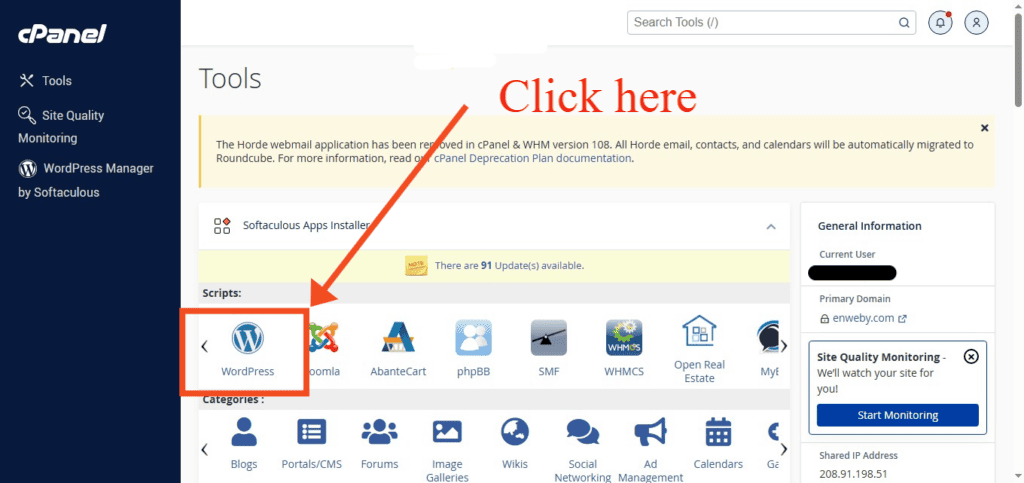
Most modern hosts offer a 1-click WordPress install. In your cpanel click on wordpress icon
It will give you another page where you can install wordpress.
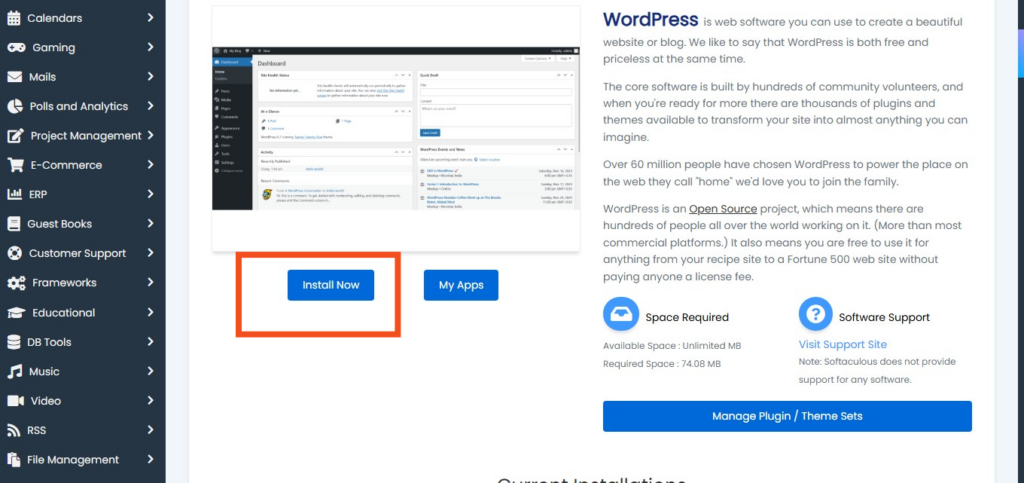
Once installed:
- Access your dashboard via yourdomain.com/wp-admin
- Update to the latest version of WordPress
- Enable automatic updates and backups.
From your WordPress dashboard:
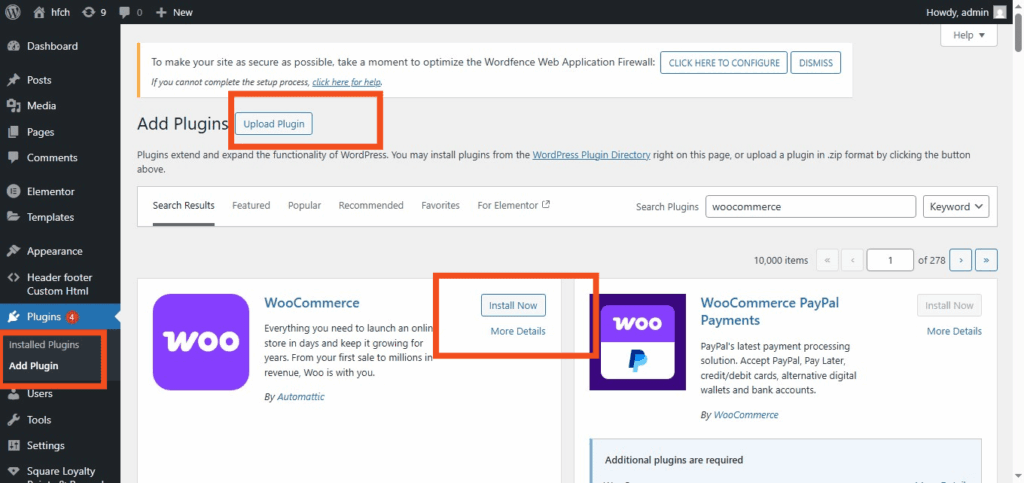
- Go to Plugins → Add New
- Search for WooCommerce
- Click Install Now → Activate
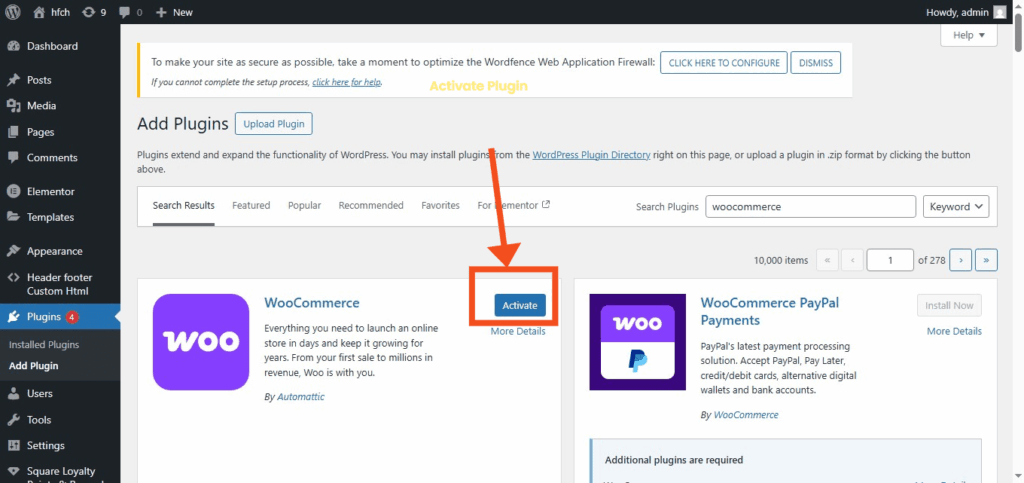
WooCommerce will launch a setup wizard automatically to setup your WooCommerce Store — this will guide you through store basics.
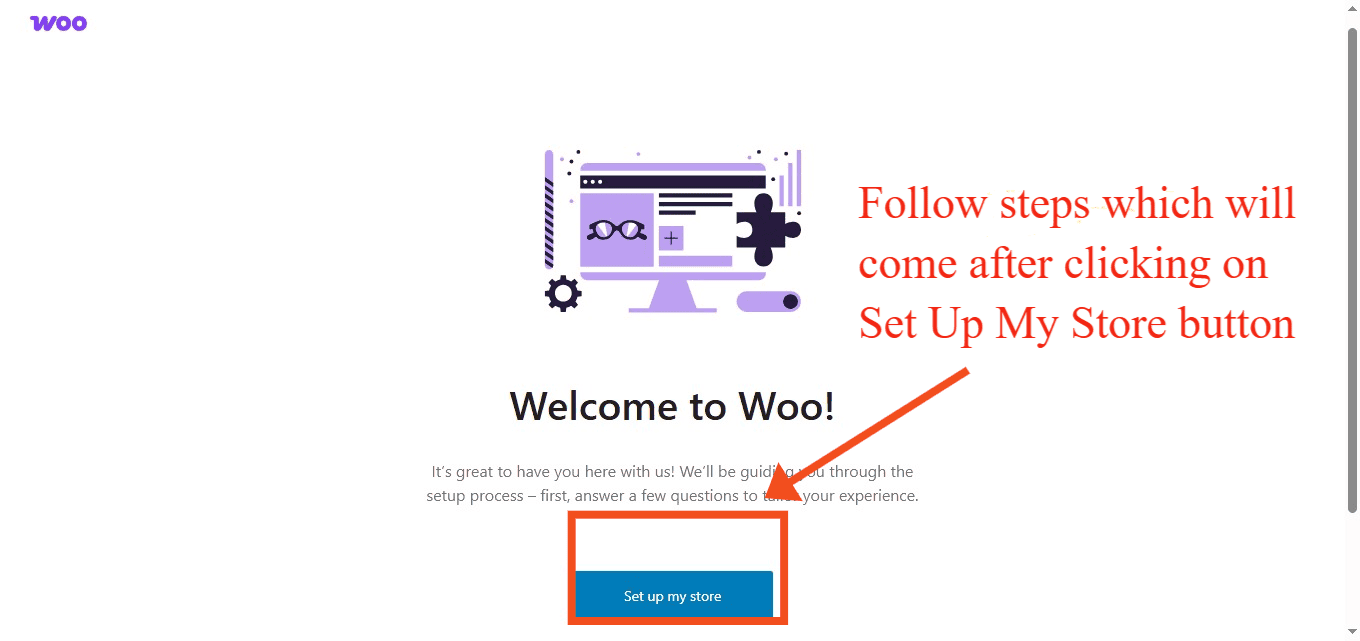
To complete setup of your WooCommerce store Enter the following details carefully:
- Store Address & Currency
- Industry Type
- Product Types (Physical, Digital, or Subscriptions)
- Payment Gateways (PayPal, Stripe, Square)
- Shipping Zones
- Recommended Tools – Jetpack, WooCommerce Payments, and MailPoet for email marketing.
- After setup wizard is completed you will see Wocommerce like below.
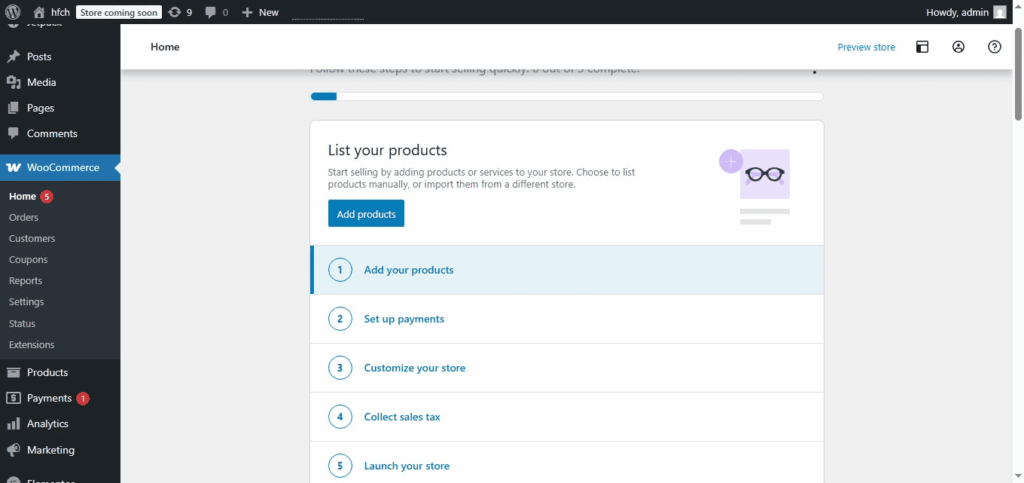
 Optimization Tip: Enable WooCommerce Payments for easy Apple Pay/Google Pay support.
Your theme defines your store’s look, speed, and UX — which all affect SEO.
Best WooCommerce Themes in 2026 are
- Astra – Lightweight, customizable, FSE ready.
- Storefront – Official WooCommerce theme (great for beginners).
- Kadence – Fast, Gutenberg-friendly.
- Blocksy – Modern design, block editor optimized.
- Flatsome – Premium theme with drag-and-drop builder.
Install theme by going Appearance → Themes → Add New.
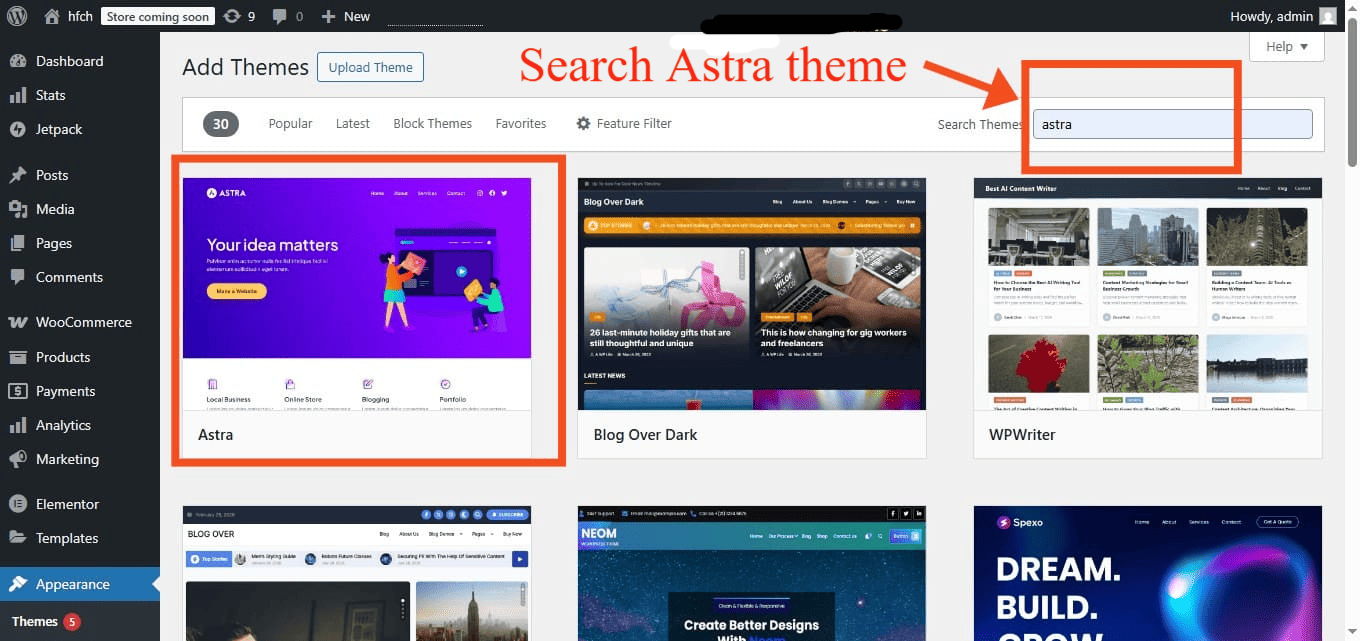
After installing activate theme.
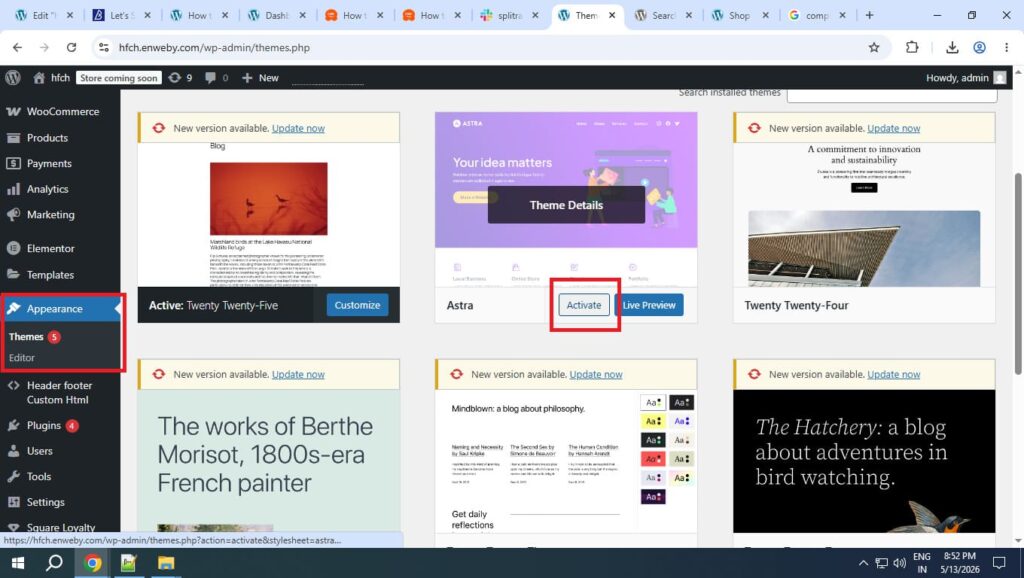
After installation customize using Appearance → Customize.
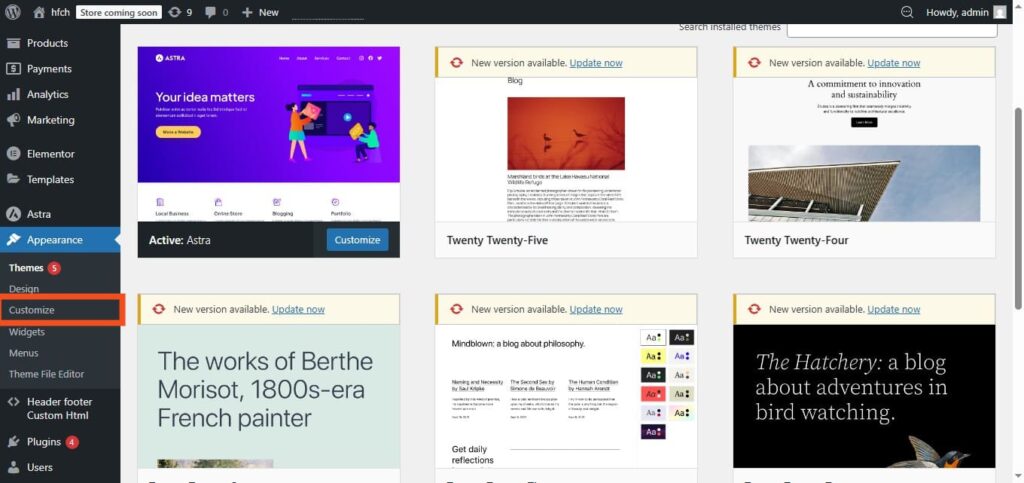
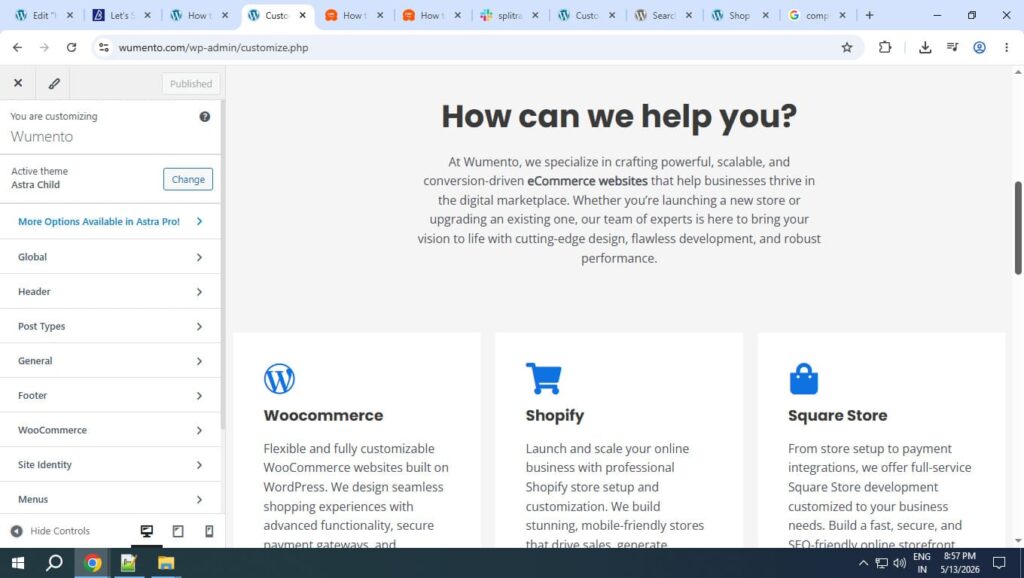
This will give new screen where you can customize different options.
SEO Tip: Use schema-optimized themes (like Astra or Kadence) for better product rich snippets.
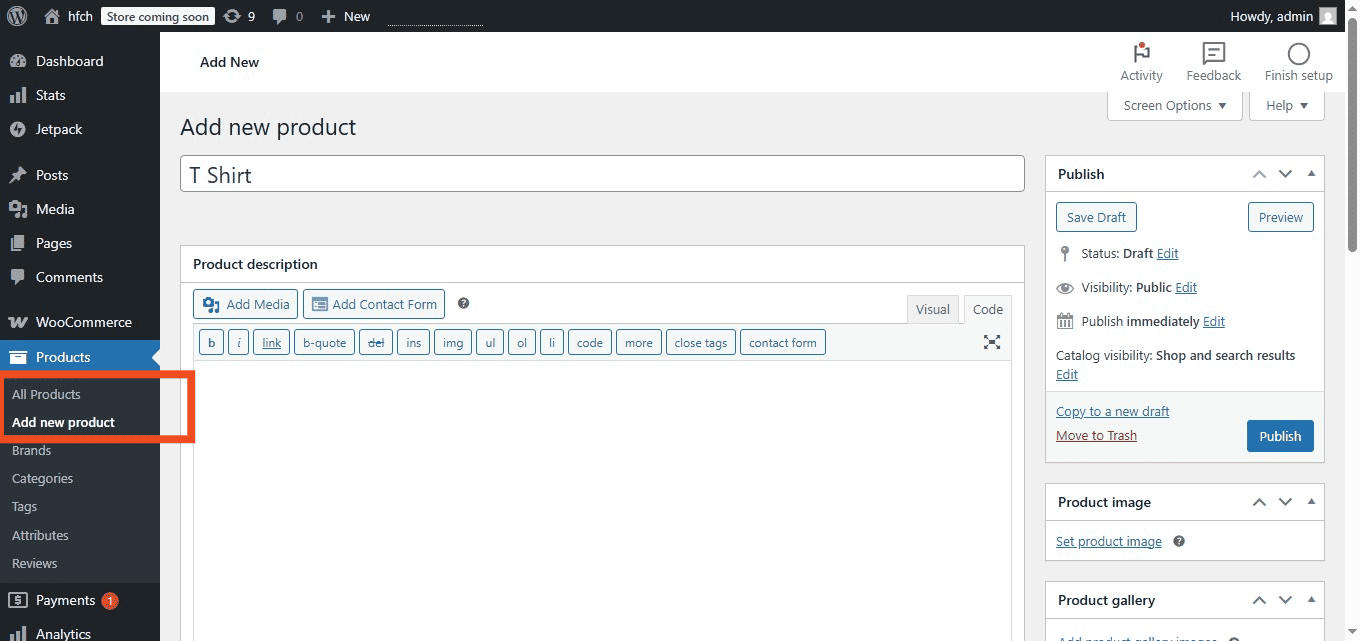
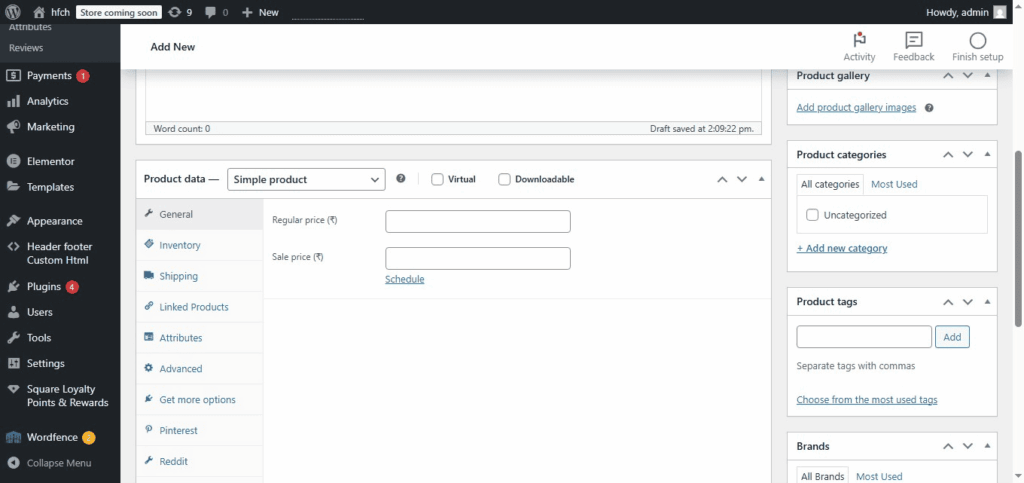
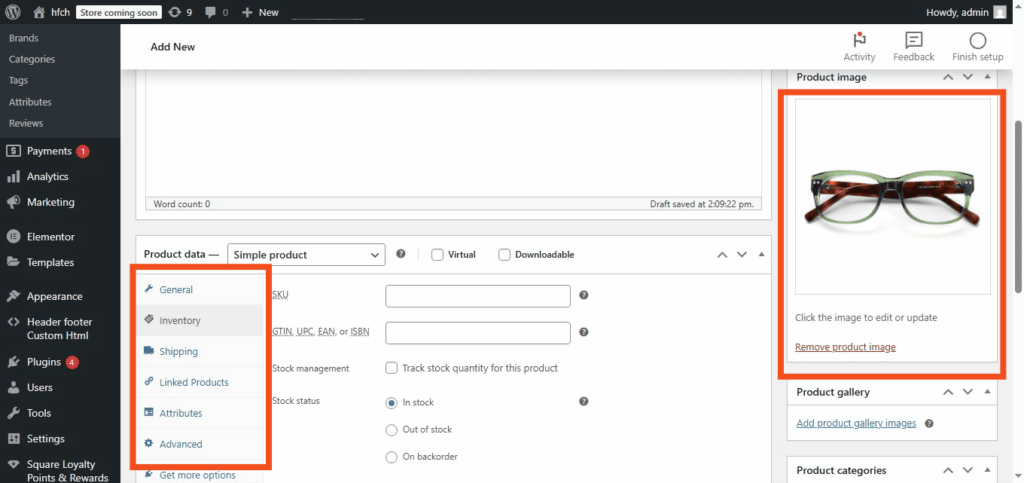
Go to Products → Add New, then:
- Add a Product Name and Description
- Set Product Images (1200×1200px or higher)
- Enter Pricing and SKU
- Assign Categories and Tags
- Configure Inventory and Shipping
 SEO Tip: Include your focus keyword in the product title and meta description. Write unique, benefit-driven descriptions (avoid manufacturer copy).
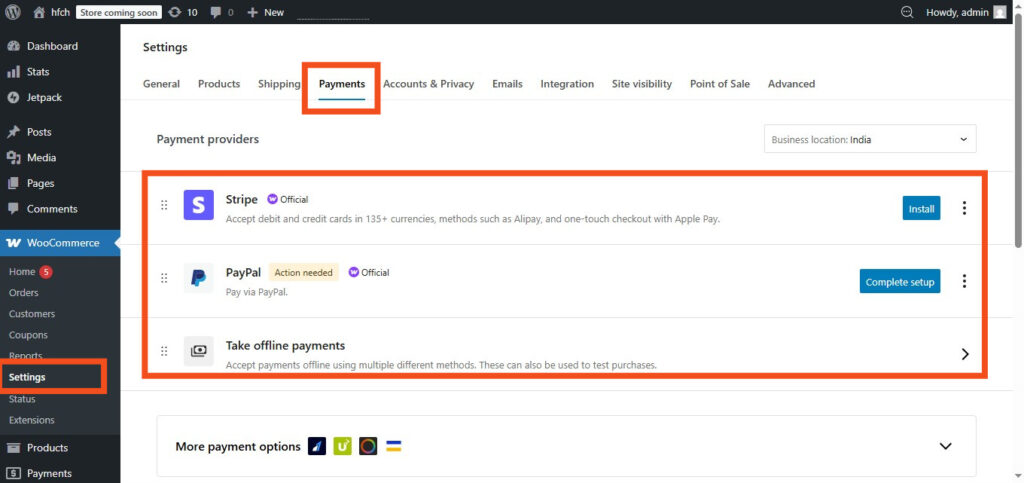
Enable secure, fast payments under WooCommerce → Settings → Payments:
WooCommerce Payments (Built-in)
- Stripe – Supports multiple currencies.
- PayPal Checkout – Trusted globally.
- Square – Perfect if you also sell in person.
🔐 Pro Tip: Use HTTPS (SSL) and enable fraud prevention tools for safe transactions.
Navigate to WooCommerce → Settings → Shipping to define:
- Shipping Zones (e.g., Domestic, International).
- Rates (Flat, Free, Real-Time via APIs like Shippo or UPS).
- Labels via WooCommerce Shipping (print directly from dashboard).
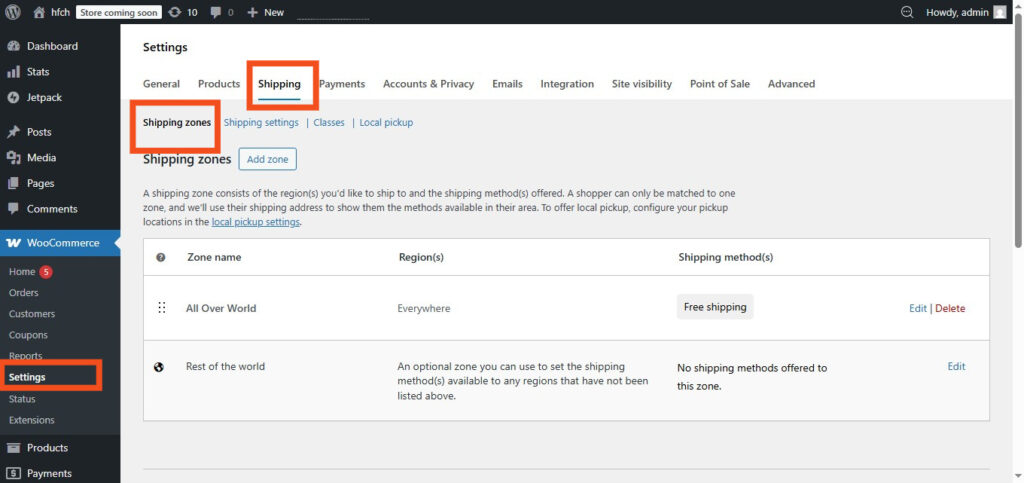
To add a new Zone click on Add Zone button
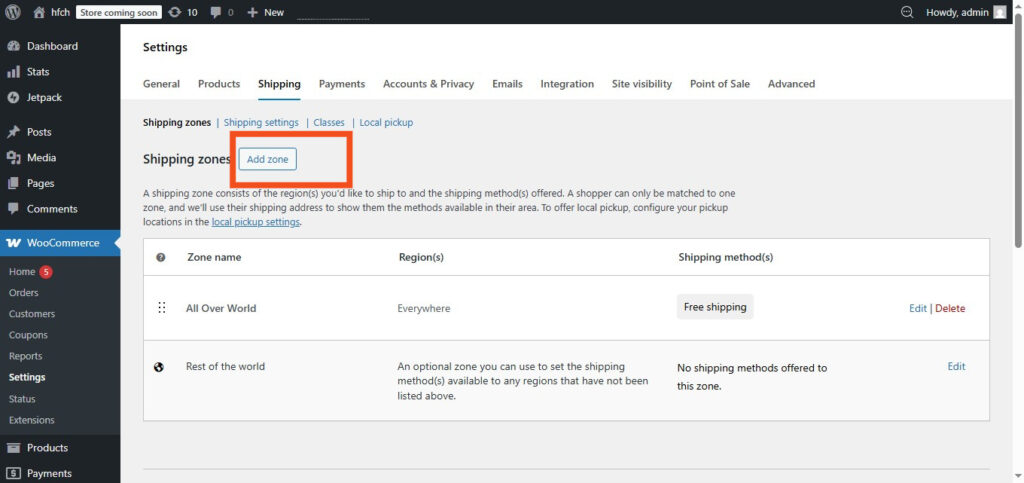
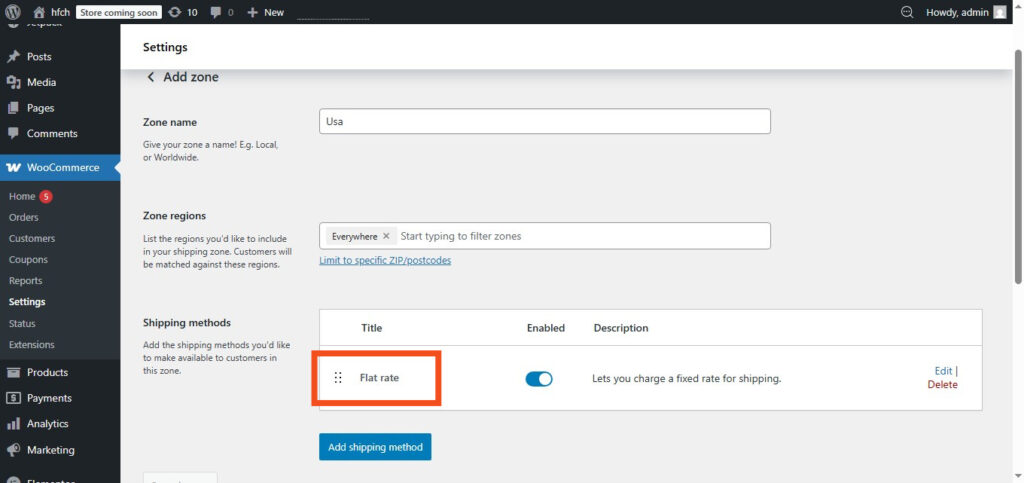
This will give a page to add Zone information like Zone name, zone region, and Shipping method.
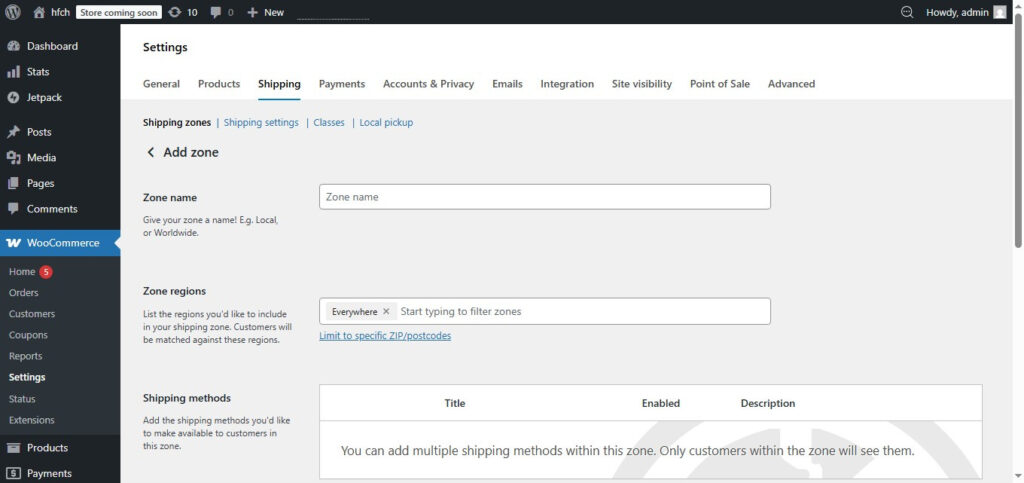
Now add Zone name, Zone Region and Shipping method.
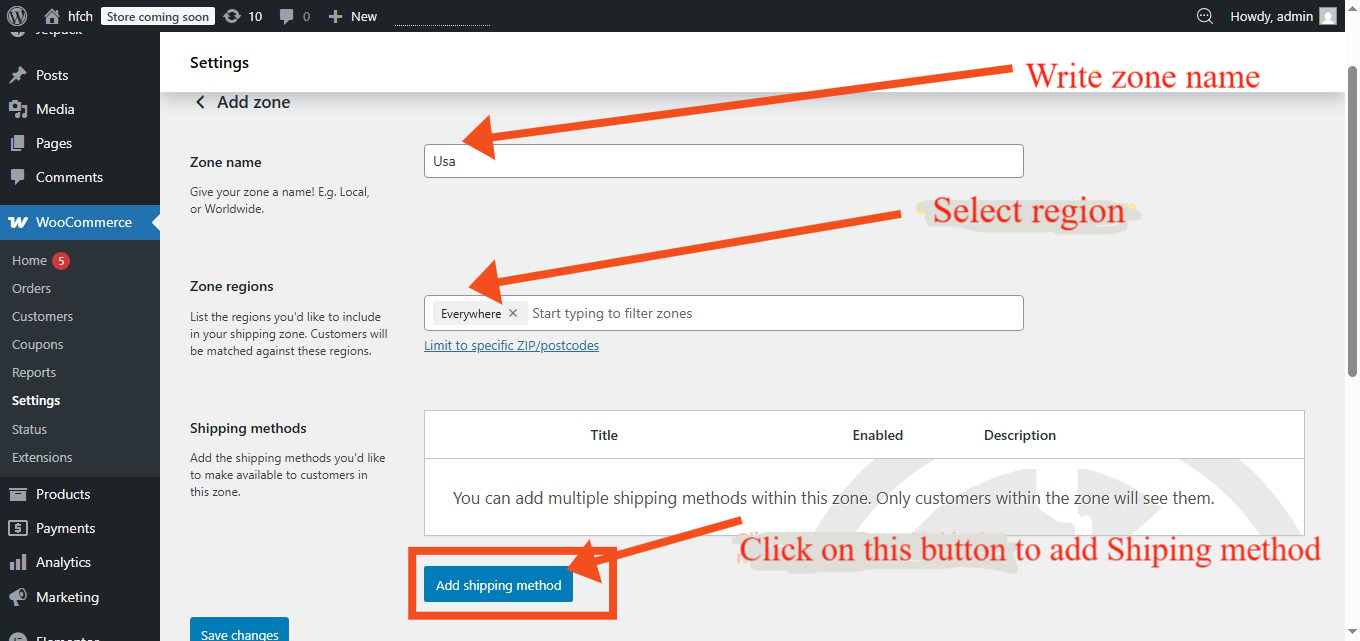
After that you need to click Add Shipping Method to add shipping method. This will give you a popup to add Shipping method.
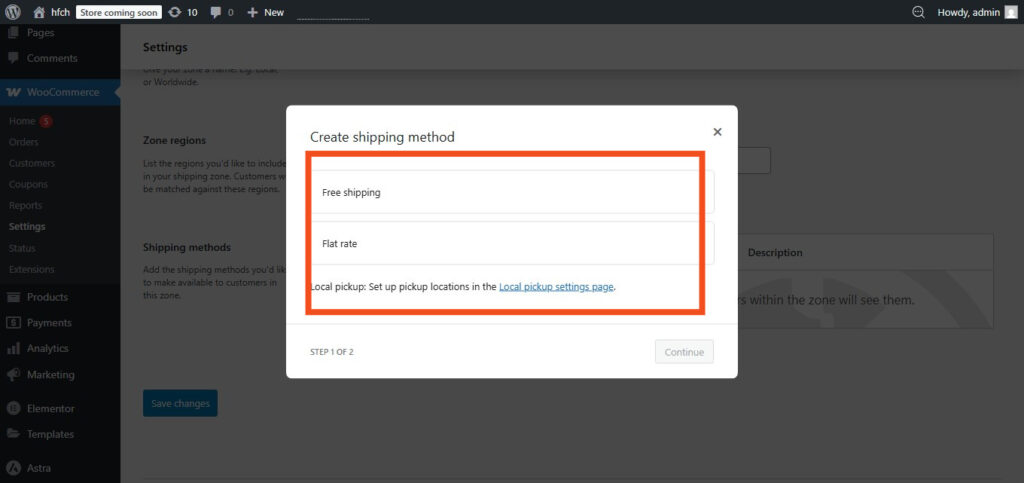
For example we are selecting Flat fee method
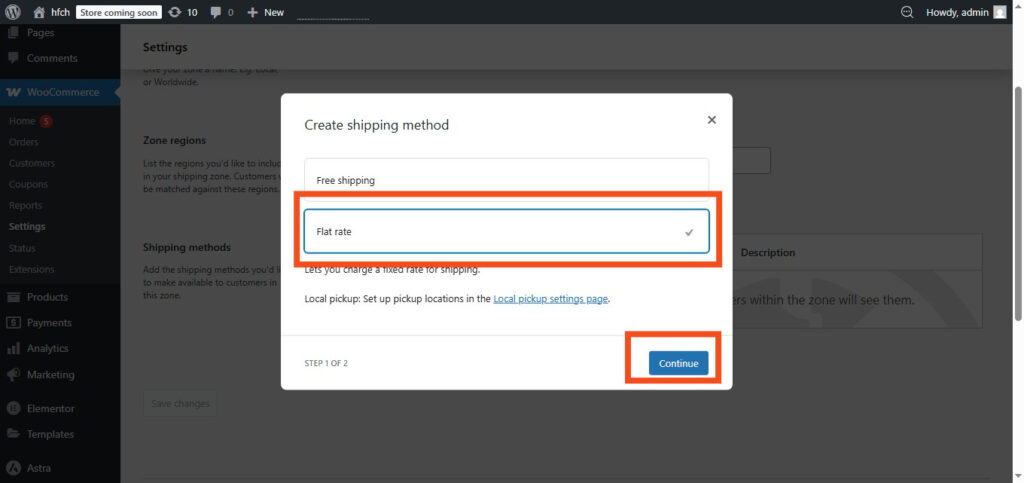
Now press Continue button ad it will give you updated popup to add Shipping method information.
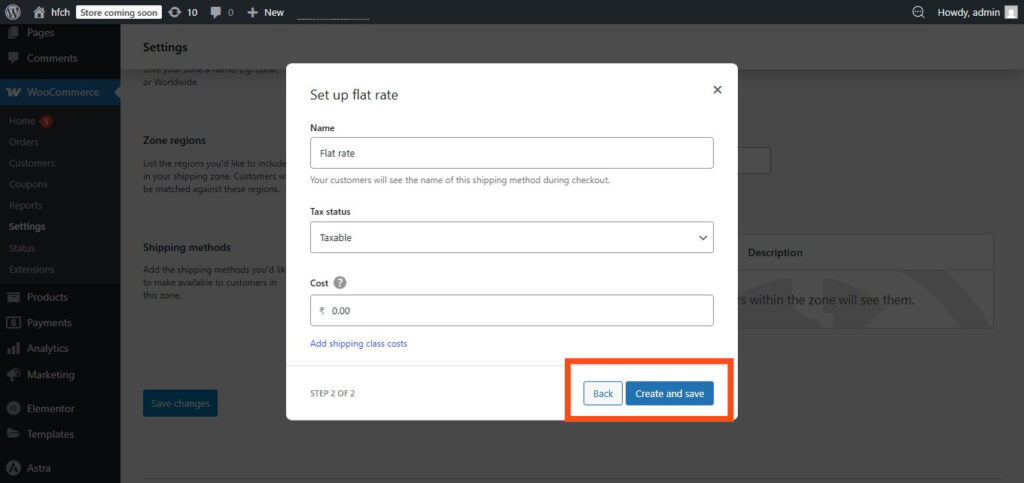
Fill up the info and cost and save and a new with new shipping method is added.
💡 Conversion Tip: Offer free shipping above a certain amount to increase order value.
WooCommerce plugin when installed automatically creates key pages:
- 🛍️ Shop
- 🧺 Cart
- 💳 Checkout
- 👤 My Account
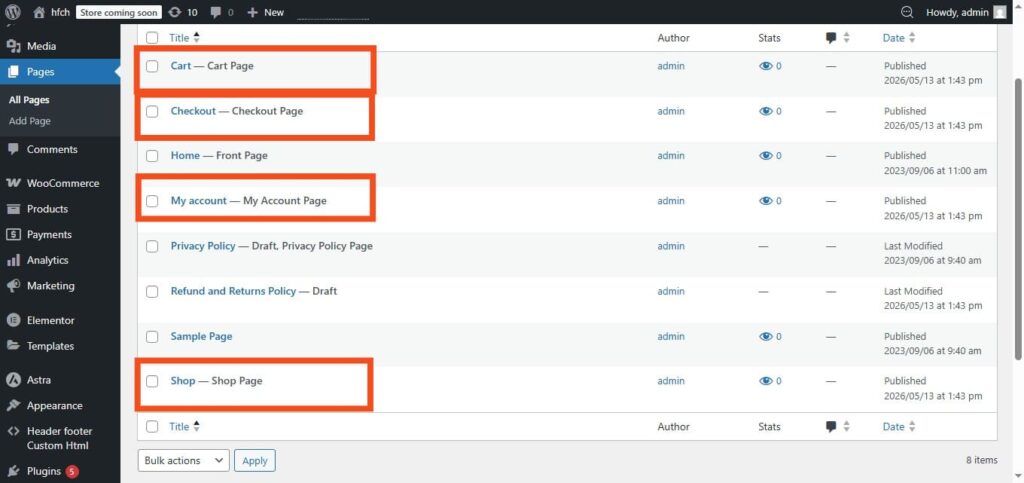
Double-check under WooCommerce → Settings → Advanced that all pages are correctly linked.
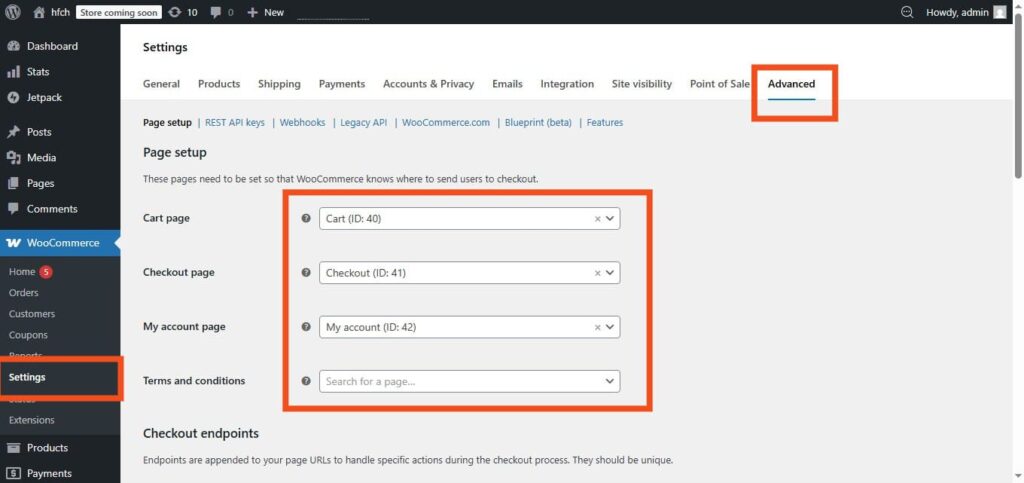
Customize each using the Gutenberg Block Editor or any page builder of your choice like Elementor for SEO-friendly headings and internal links.
So this was how you to set up your wooCommcer store. Starting a WooCommerce store in 2026 is simpler and more powerful than ever.
With the right foundation — optimized hosting, SEO-friendly setup, and customer-focused marketing — you can build a professional store that attracts traffic, converts visitors, and grows sustainably.
So don’t wait — start your WooCommerce journey today and turn your idea into an online business!
Still have questions? Email us at support@wumento.com or contact us for free advice. We’ll help you find the best possible and reasonable solution for you.