
Introduction
Installing WordPress is easier than ever. In this guide, you’ll learn how to install WordPress in two different ways including the fastest one-click method and the manual installation method for users who want more control over their setup. We’ll also cover the requirements, common installation errors, and what to do after installing WordPress.
If you’re planning to create a blog, business website, portfolio, or online store, WordPress is one of the best platforms available. The good news is that installing WordPress is easier than ever, and most beginners can get their website online within a few minutes.
By the end of this step-by-step guide, you’ll have a fully functional WordPress website ready for customization.
Table of Contents
- 1: What Is WordPress?
- 2: Why Choose WordPress?
- 3: Requirements Before Installing WordPress
- 4: Installing WordPress
- 5: One-Click Installation
- 6: Manual Installation
- 7: Things to Do After Installing WordPress
- 8: Common WordPress Installation Problems and Solutions
- 9: Frequently Asked Questions
- 10: Final Thoughts
What Is WordPress?
WordPress is a free and open-source Content Management System (CMS) that powers millions of websites worldwide. It allows you to build and manage a website without needing advanced programming skills.
Some of the most popular websites on the internet use WordPress because it is flexible, beginner-friendly, and highly customizable
Why Choose WordPress?
- Free to download and use.
- Beginner-friendly dashboard.
- Thousands of free and premium themes.
- Massive plugin ecosystem.
- SEO-friendly structure.
- Strong security and community support.
- Suitable for blogs, business sites, portfolios, and eCommerce stores.
Requirements Before Installing WordPress
1. Domain Name
A domain name is your website’s address on the internet.
Example:
● yourwebsite.com
● myblog.ne
2. Web Hosting
A hosting provider stores your website files and makes them accessible online.
3. SSL Certificate
An SSL certificate encrypts data and enables HTTPS on your website. Most hosting providers like Hostinger offer free SSL certificates.
4. WordPress-Compatible Hosting Environment
Recommended minimum requirements:
● PHP 8.0 or higher
● MySQL 5.7 or higher
● MariaDB 10.4 or higher
● HTTPS support
INSTALLING WORDPRESS
Method 1: Install WordPress Using One-Click Installation
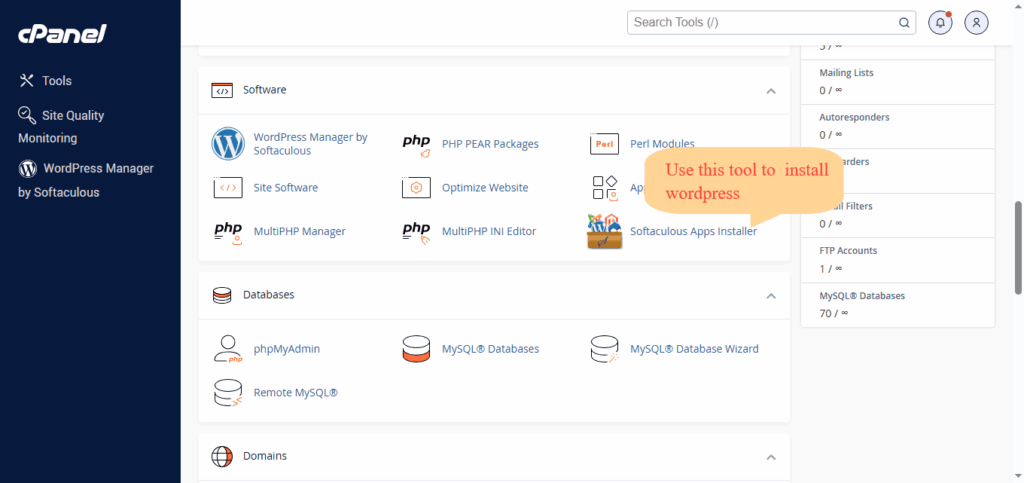
This is the easiest method and is recommended for most beginners. Nearly all modern hosting providers offer a one-click WordPress installer through their control panel.
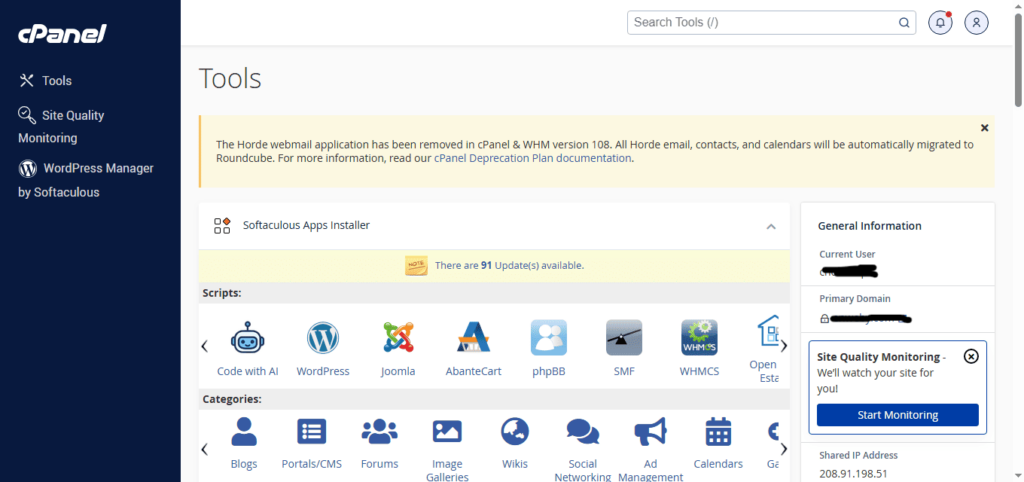
Step 1: Log In to Your Hosting Dashboard
Access your hosting account and open the control panel. Depending on your host, you may see:
● WordPress Manager
● Softaculous Installer
● Website Setup Wizard
● Auto Installer
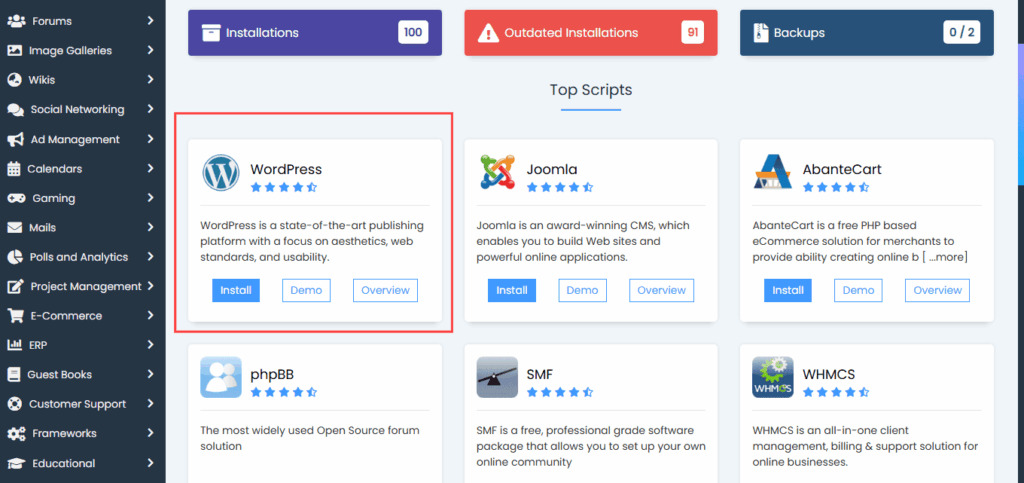
Step 2: Select WordPress
Locate the WordPress installer and click the Install button.
Step 3: Enter Website Information
You’ll be asked to provide:
Site Name
This is your website title.
Example: “Tech Tutorials Hub”
Site Description
A short description of your website.
Example:
“Helpful WordPress and SEO tutorials for beginners.”
Administrator Username
Choose a unique username instead of using “admin.”
Strong Password
Create a secure password containing:
● Uppercase letters
● Lowercase letters
● Numbers
● Special characters
Email Address
Use an email address you actively check or monitor.
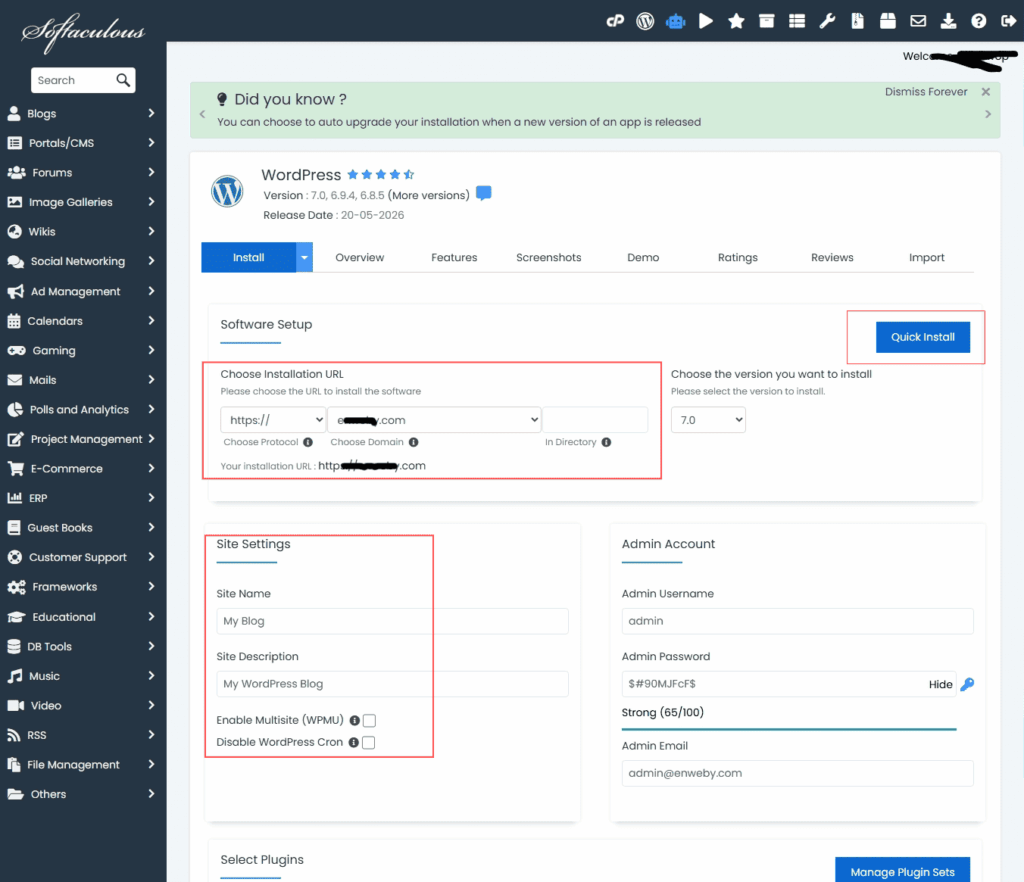
Step 4: Choose Your Domain
Select the domain where WordPress should be installed.
If this is your main website, install it in the root directory rather than a subfolder else you can install it on subfolder.
Step 5: Click Install
The installer will automatically:
- Create the database.
- Configure WordPress.
- Install core files.
- Create administrator credentials.
The process usually takes less than two minutes.
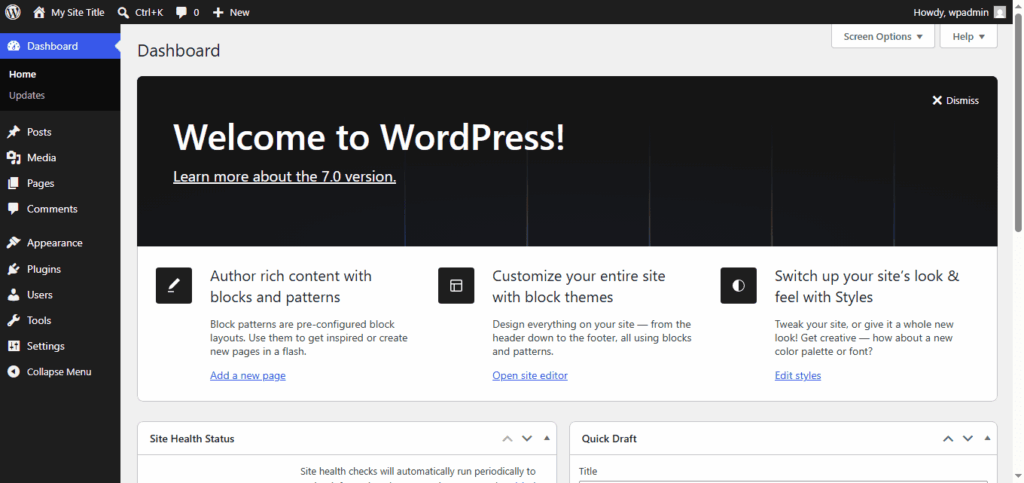
Step 6: Access Your WordPress Dashboard
After installation, visit:
yourdomain.com/wp-admin
Enter your login credentials to access the WordPress dashboard.
Congratulations! Your WordPress website is now live.
Method 2: Install WordPress Manually
Manual installation is ideal for users who want complete control over the installation process.
Although it requires a few extra steps, it’s still beginner-friendly when followed carefully.
Step 1: Download WordPress
Download the latest version of WordPress from the official website.
Always use the latest release to ensure security and performance.
Step 2: Extract WordPress Files
Unzip the downloaded package on your computer.
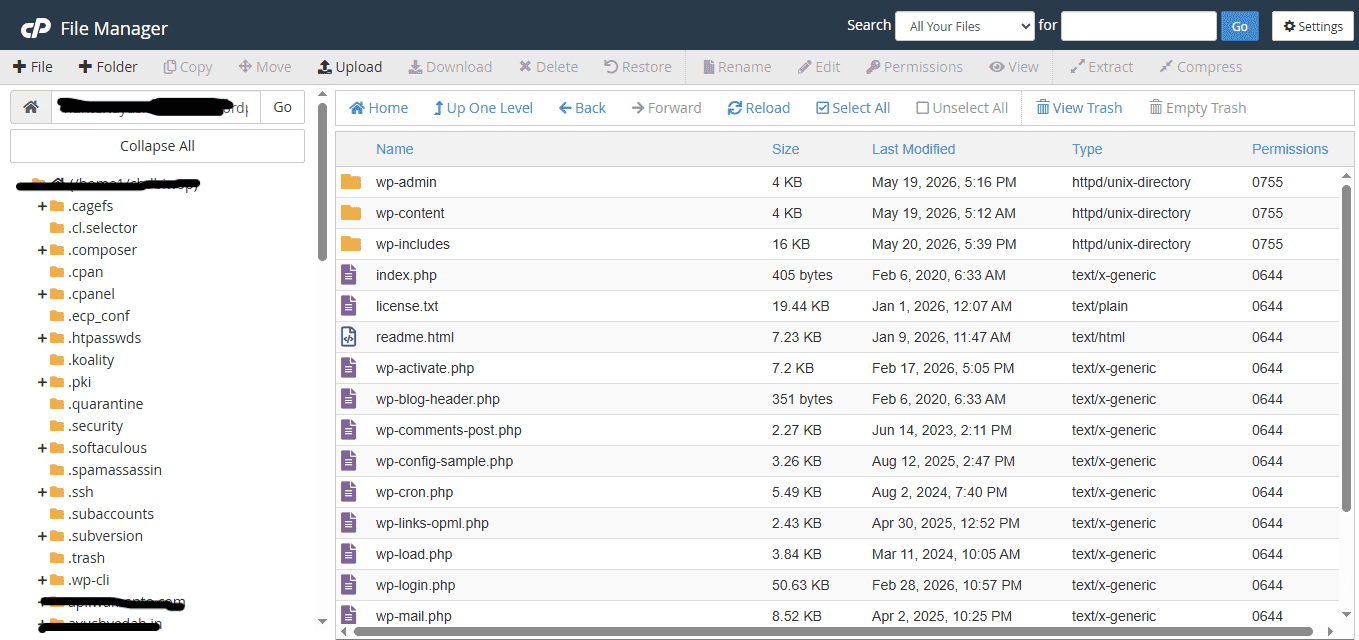
You will see specific files and folders such as :
● wp-admin
● wp-content
● wp-includes
Step 3: Upload Files to Your Hosting Account
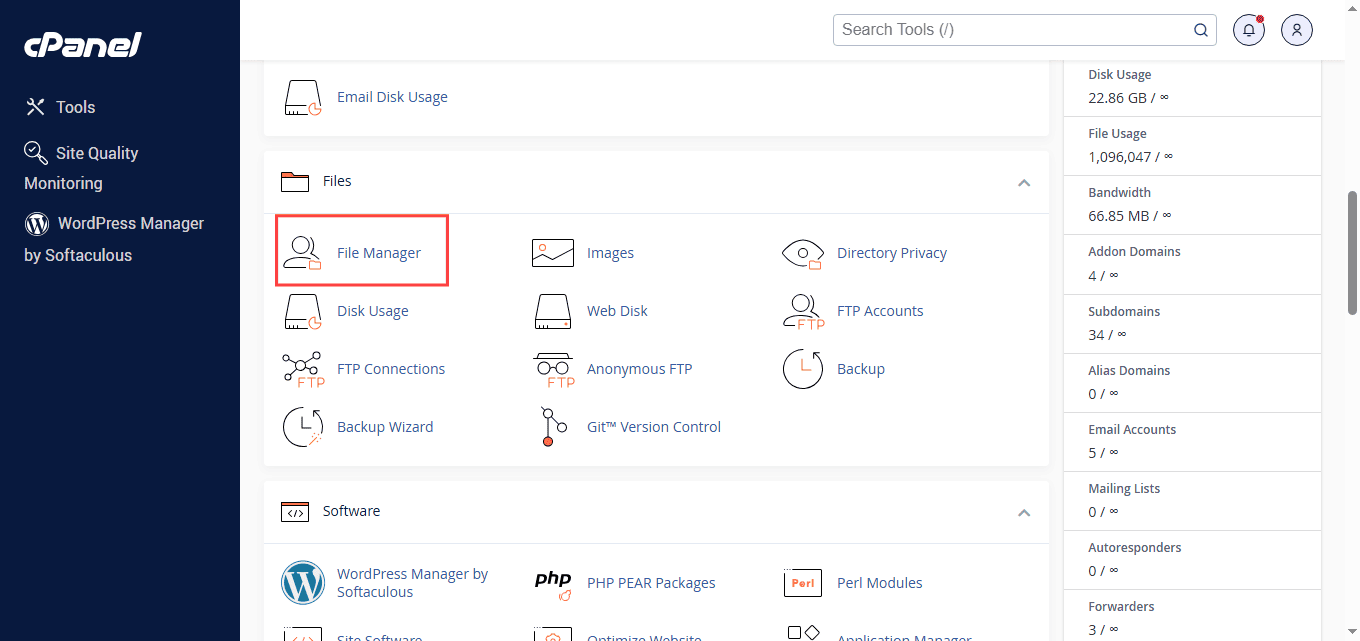
Open your hosting File Manager. and go to:
public_html
or your desired website directory.
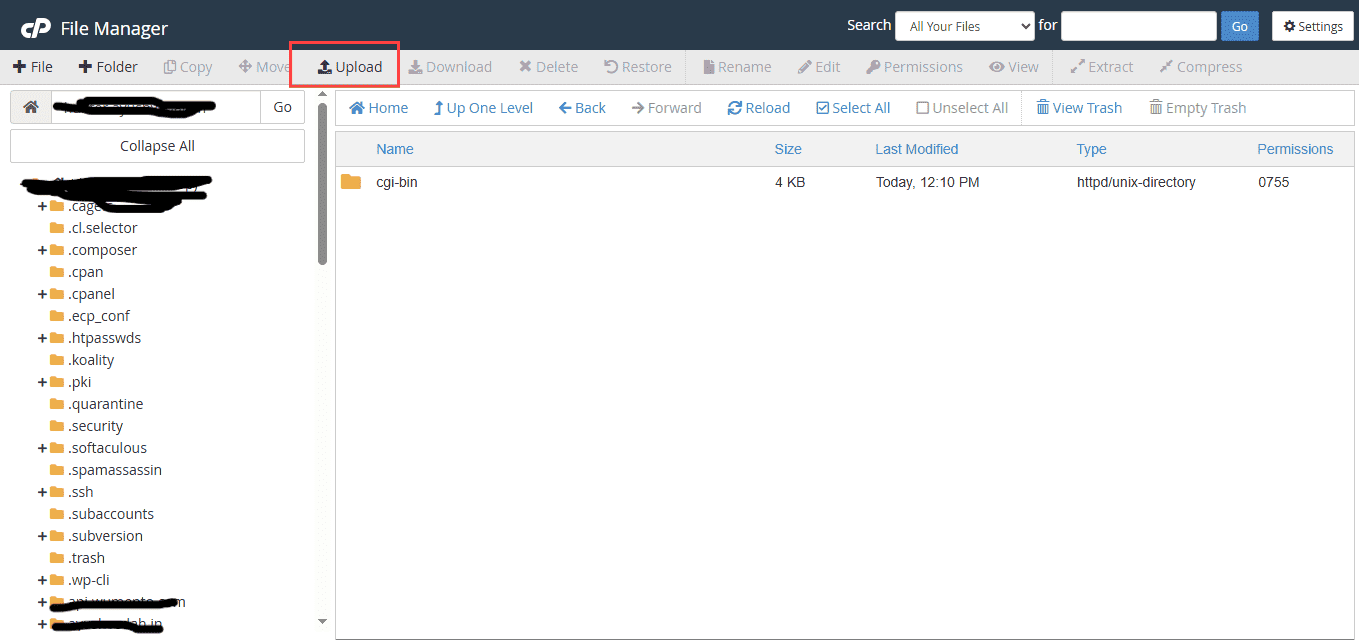
Upload all WordPress files
Step 4: Create a Database
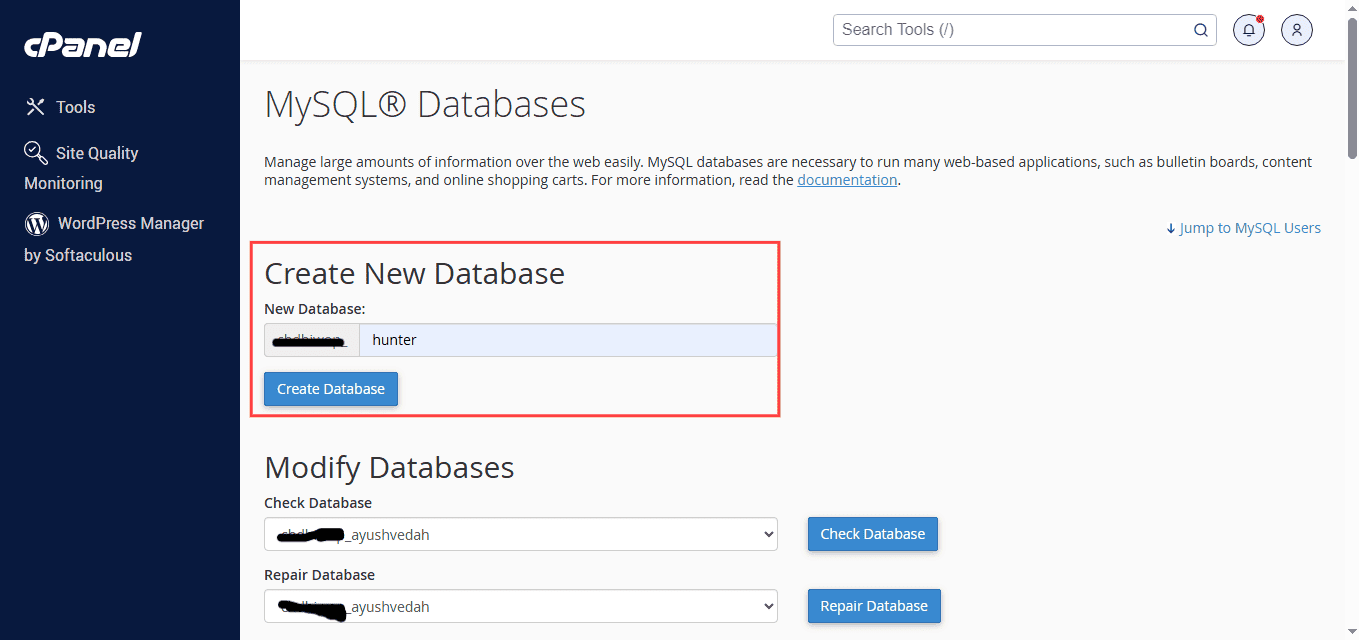
WordPress stores posts, pages, settings, and user information inside a database.
To create one:
Open MySQL Database Wizard.
1. Create a database.
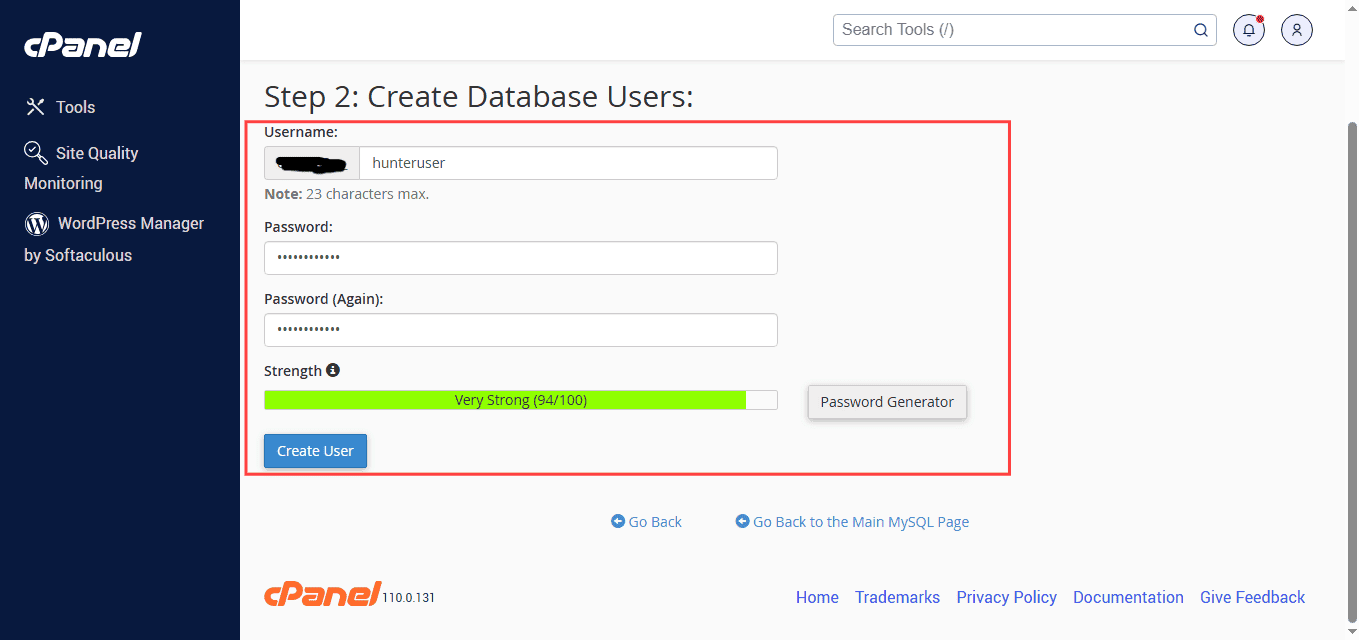
2. Create a database user.
3. Assign the user to the database.
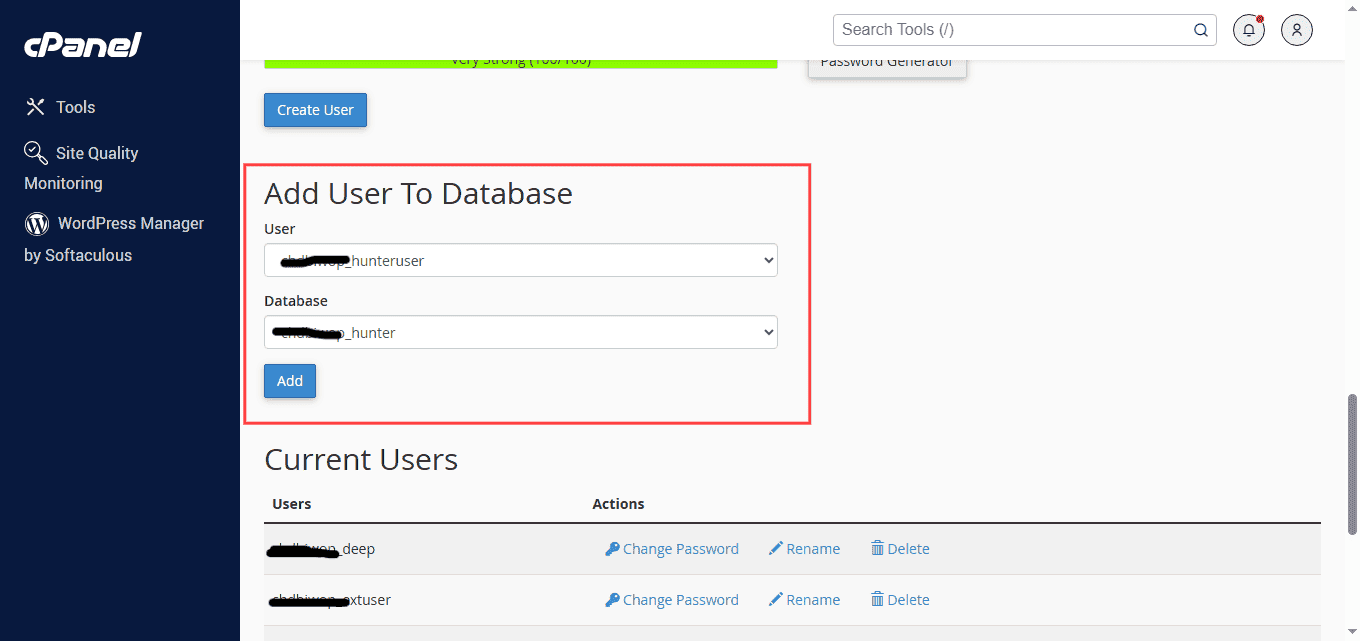
4. Grant all privileges.
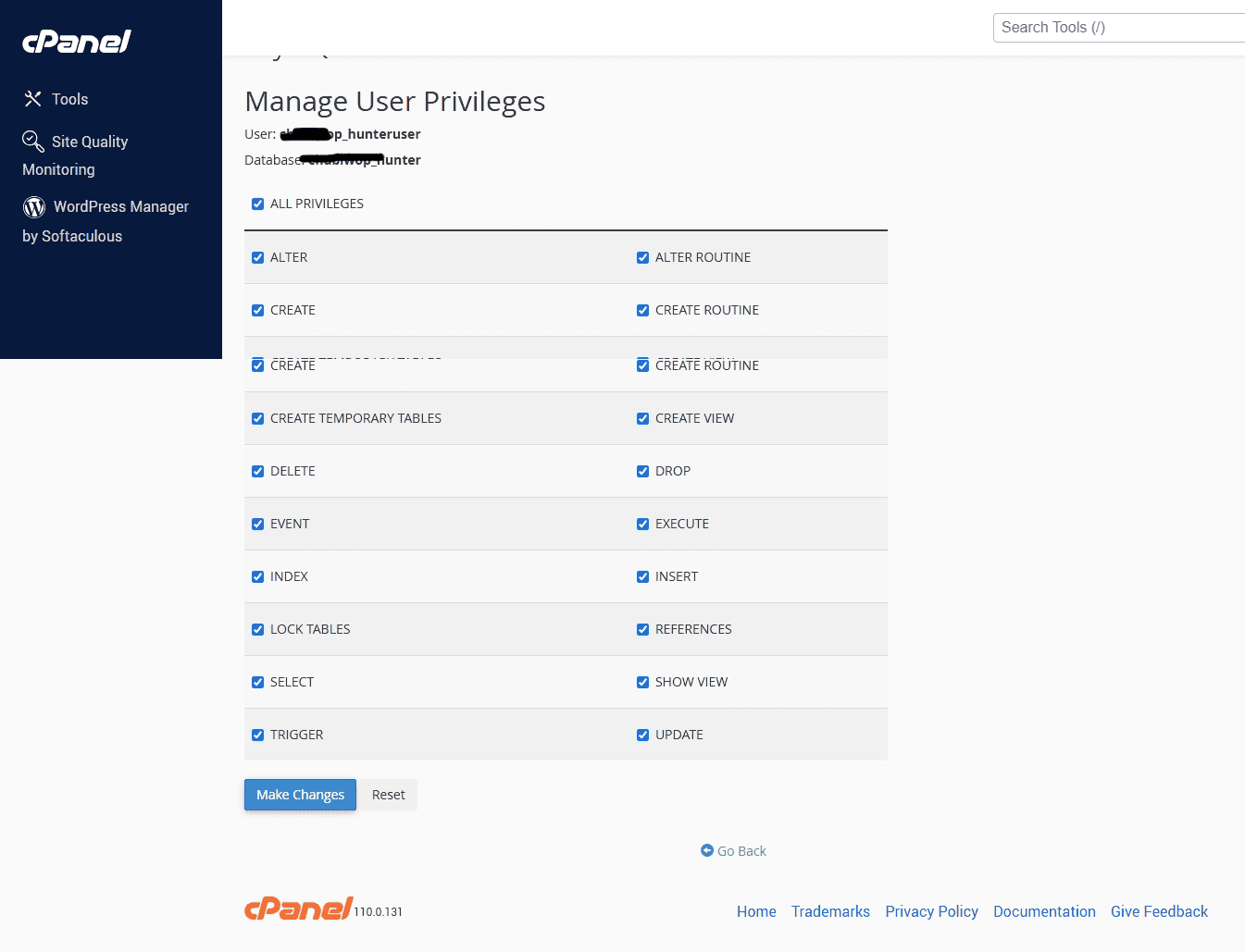
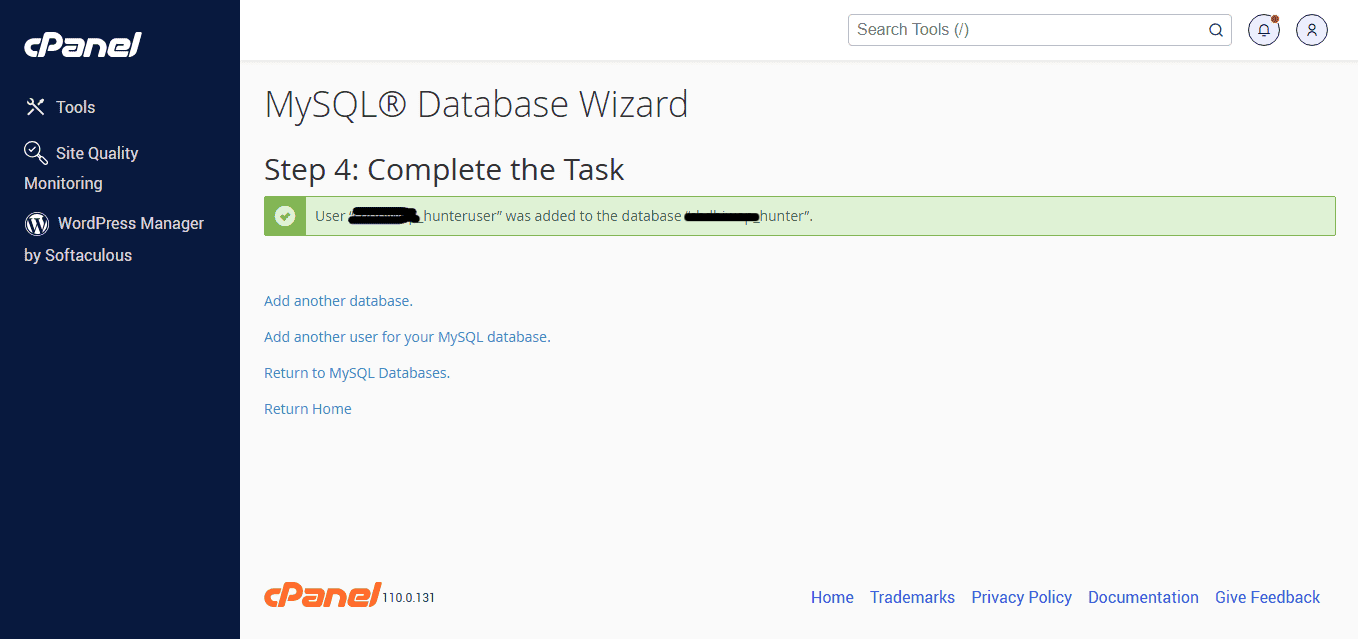
Keep the following information safe:
- Database Name.
- Database Username.
- Database Password.
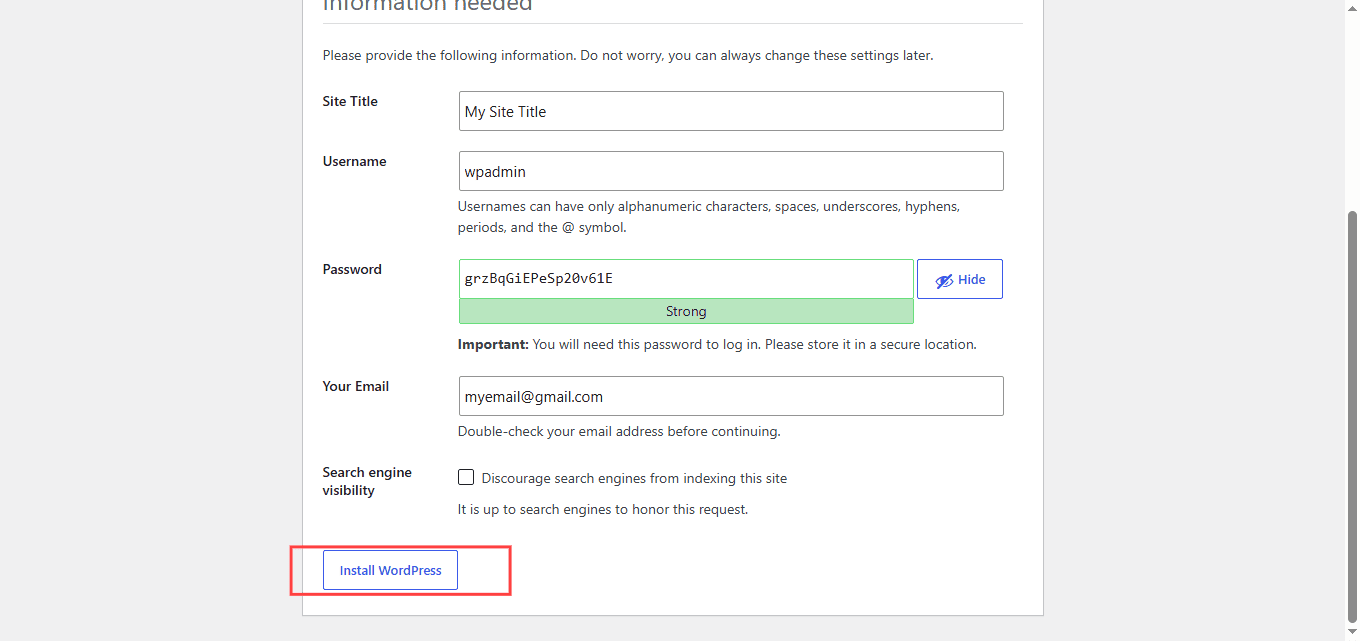
Step 5: Run the WordPress Installation Wizard
Open your website URL in a browser.
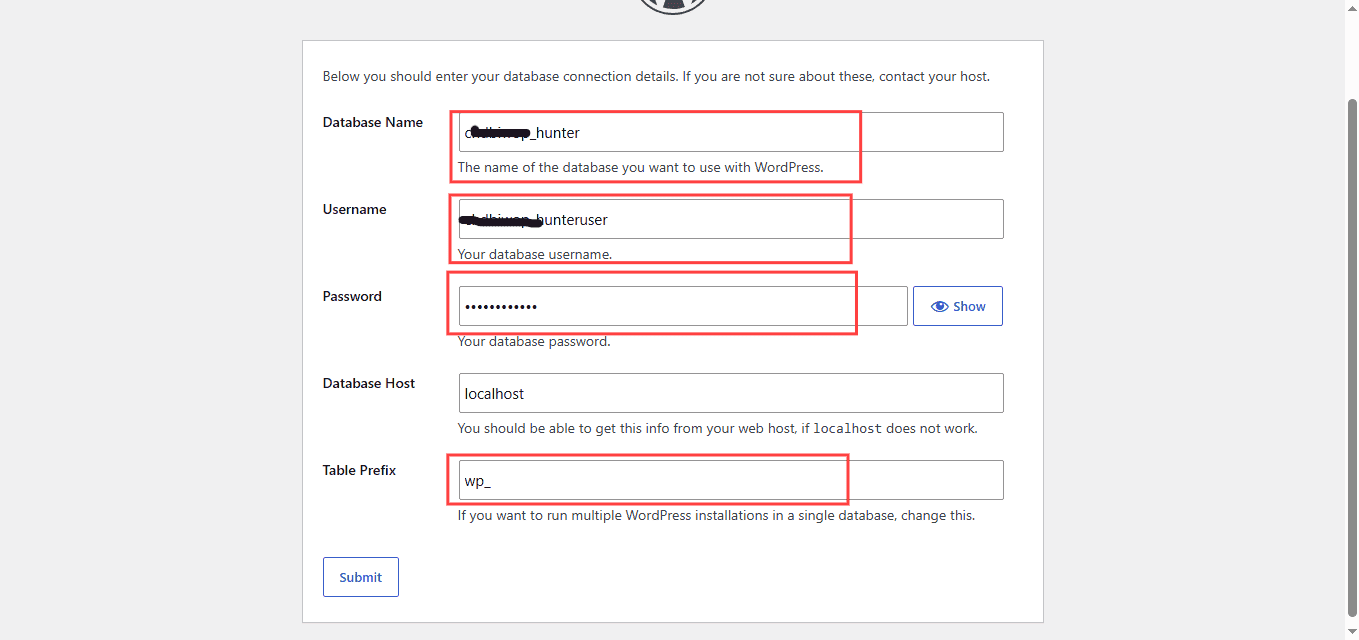
WordPress will automatically detect the configuration and launch the setup wizard.
Enter:
- Website Title.
- Username.
- Password.
- Email Address.
Click Install WordPress.
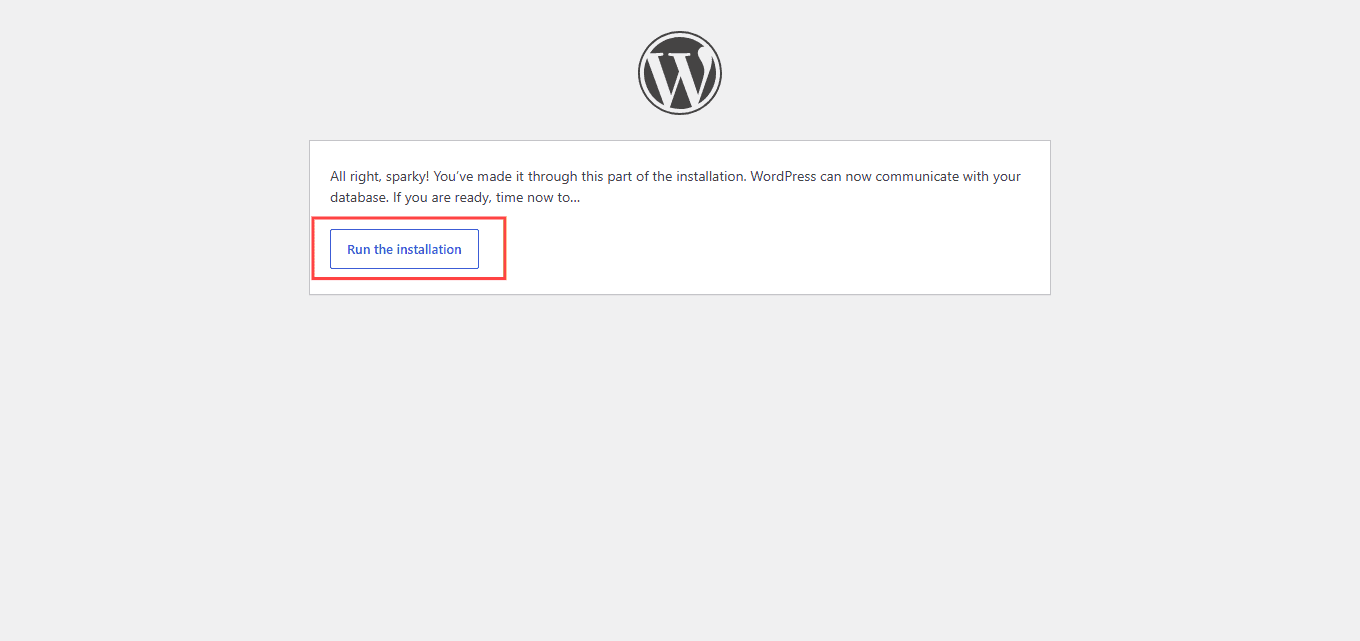
Within seconds, your installation will be complete.
Step 6: Log In
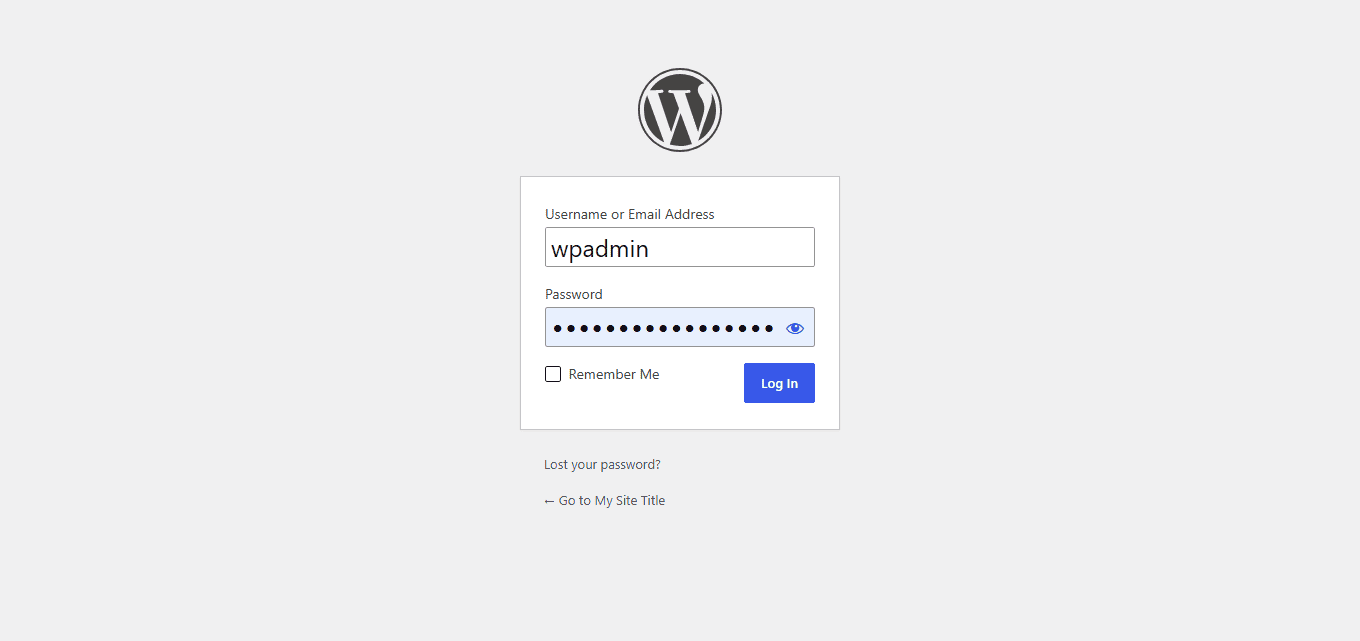
Visit:
yourdomain.com/wp-admin
Use the administrator credentials you created earlier.
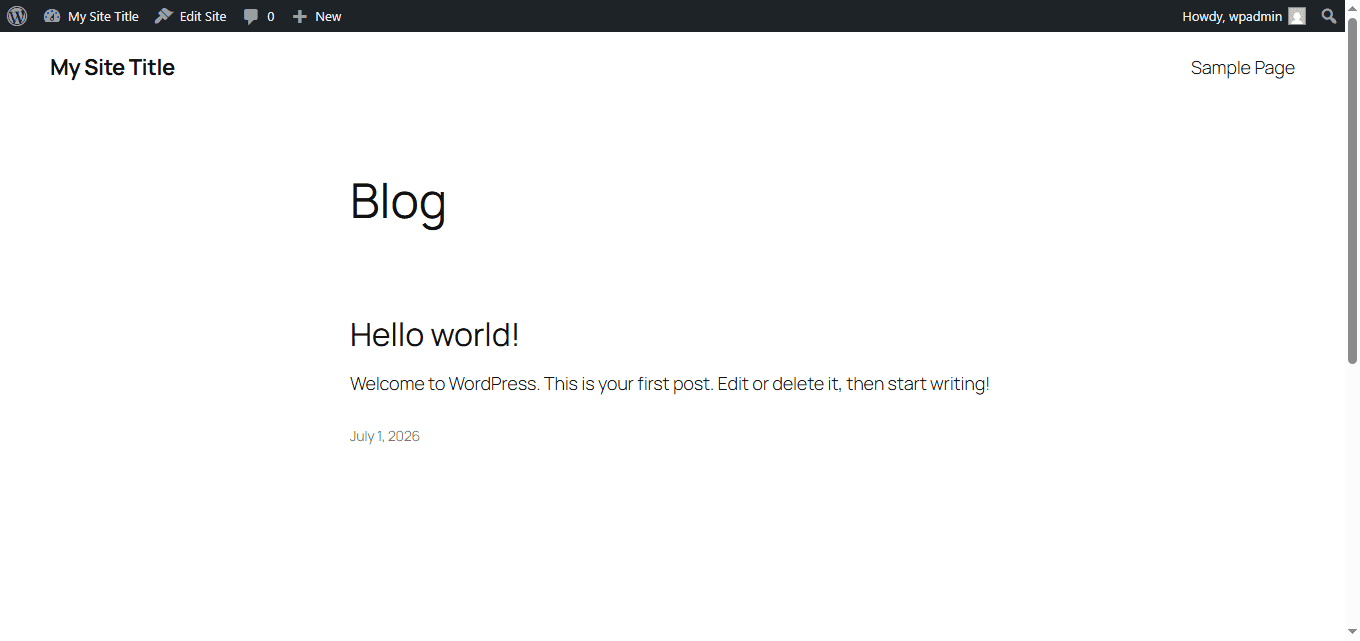
Your WordPress dashboard is now ready to use.
Which WordPress Installation Method Is Better?
Feature
One-Click Installation
Manual Installation
Ease of Use
Excellent
Moderate
Time Required
1–2 Minutes
10–15 Minutes
Beginner Friendly
Yes
Somewhat
Full Control
Limited
High
Risk of Errors
Low
Moderate
For most website owners, the one-click installation method is the best option.
Manual installation is useful for developers and users who want complete control over configuration settings.
Things to Do After Installing WordPress
Installing WordPress is only the first step.
Here are some important tasks to complete immediately after installation.
Change Your Permalink Structure
Navigate to:
Settings → Permalinks
Select:
Post Name
This creates cleaner, SEO-friendly URLs.
Example:
yourdomain.com/how-to-install-wordpress
instead of:
yourdomain.com/?p=123
Install an SEO Plugin
A good SEO plugin helps optimize your content for search engines.
Popular options include:
- Rank Math
- Yoast SEO
- All in One SEO
Install a Security Plugin
Security should be a priority from day one.
Popular choices include:
- Wordfence
- Solid Security
- Sucuri Security
Install a Caching Plugin
Caching improves website speed and user experience.
Popular options:
- LiteSpeed Cache
- WP Rocket
- W3 Total Cache
Delete Unused Themes and Plugins
Unused themes and plugins can create security risks.
Keep only the themes and plugins you actually use.
Common WordPress Installation Problems and Solutions
1. Error Establishing a Database Connection
This usually happens when database credentials are incorrect.
Check:
- Database name
- Username
- Password
- Database host
2. White Screen of Death
Common causes include:
- Plugin conflicts
- Theme conflicts
- PHP memory limitations
Try disabling plugins and increasing memory limits.
404 Errors on Pages
Go to:
Settings → Permalinks
Click Save Changes.
This refreshes WordPress rewrite rules.
Internal Server Error
Possible causes:
- Corrupted .htaccess file
- PHP configuration issues
- Plugin conflicts
Regenerating the .htaccess file often fixes the issue.
Frequently Asked Questions
Q. Is WordPress Free?
Ans. Yes. WordPress itself is completely free to download and use. However, you’ll usually need a domain name and hosting account.
Q. How Long Does It Take to Install WordPress?
Ans. Using a one-click installer, WordPress can be installed in under two minutes. Manual installation generally takes between 10 and 15 minutes.
Q. Can I Install WordPress Without Hosting?
Ans. Yes. You can install WordPress locally on your computer using software such as LocalWP, XAMPP, or WAMP.
Q. Do I Need Coding Knowledge?
Ans. No. Most WordPress users create and manage websites without writing code.
Q. Is WordPress Good for SEO?
Ans. Yes.
WordPress is considered one of the most SEO-friendly website platforms available, especially when combined with proper optimization techniques.
Final Thoughts
Installing WordPress is a straightforward process, whether you choose the one-click installer or the manual installation method. Beginners will appreciate the speed and simplicity of one-click installations, while advanced users may prefer the flexibility of manual setup.
Once WordPress is installed, focus on security, performance, SEO, and creating valuable content for your audience. A properly configured WordPress website provides a strong foundation for blogs, business websites, portfolios, and online stores.
With the steps outlined in this guide, you can confidently install WordPress and start building your online presence today.